


Grunge Style (Story)
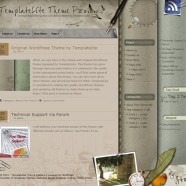
Latest Version: 3.00 Updated on: 2015/05/26 Unlike the Grunge Style main theme which uses dark elements, the Story style of this theme is much lighter, giving you the soft feeling. Click on the “Free Download” link above to get the theme now! By using this theme for FREE, you agree to accept the external links. To activate the Story style of the Grunge Style theme, follow 2 simple steps below: Step 1 Go to the theme Options page in WP admin => Appearance => Grunge Style Step 2 Under “Theme Style”, select “story.css” and save the page. Gain access to the fully layered Photoshop file for quick and easy tweakage. PSD files included for both the main and the sub themes. Ad-Free PackageRemoving the credit links will make the theme to not function properly. Unencrypted main and sub theme files can be purchased at $20. Theme CustomizationDo you want to customize this theme to include images that suit your blog's topic? I can help you with the graphical customization. For more details, please visit the theme customization service page. The following is an example of a custom design of the Grunge Style theme. Main Features – User-friendly Options page – Custom menu – Automatic Thumbnails – Different design for sticky post feature – Compatible with IE7, IE8, Firefox, Chrome, Safari, Opera – W3C XHTML and CSS compliant – SEO ready – Gravatar enable Translation Help Needed If you wish to translate this theme into your own language, you can do so with the use of the Poedit program. To find out how this works, please refer to this comprehensive guide. When you have completed the localization, kindly send me the translated files so I can share your work (with your credit) with other users. Automatic Thumbnails Please refer to this page for the details of how the automatic thumbnails work. Drop-down Menu The Grunge Style theme has a multi-level drop-down menu that is using the latest function in WP 3.0. There are two ways to create the drop-down menu. 1) When you create hierarchical pages, the drop-down menu will show up automatically in the header navigation. 2) You can manually define the header links using the custom menu. To do it, first, click on the “Menus” link found under the “Appearance” tab in WP admin. Then follow the instruction on the page to add your custom menu. This feature only works with WP 3+. Plugin There is a featured content section below the header menu. This feature is built in using the Featured Content Gallery (FCG) plugin. Please download the latest version and follow the instruction found in “Readme.txt” to do the setup. If you do not want to show this feature, just don’t install the plugin. Blog Title and Description The demo is showing a special font as below: By default, after you install the theme, the blog title and description are showing the Time News Roman font. You can change the font style by following this instruction: Part 1: Modifying Font Style – Download this PSD zip file (also include the font that I use) – Extract and open the PSD file in the Photoshop/ImageReady/Gimp/PaintShop program – Change the title and description using your desired font (you are free to modify the header image if you want) – Save the image using this name: bg_header.jpg – Upload the image to your server in the “/styles/story/” folder Part 2: Activating the Style – Login to your WP admin – Go to the options page of the Grunge Style theme under “Appearance -> Grunge Style” – Find “Theme Style”...
Read MoreFabulous Las Vegas
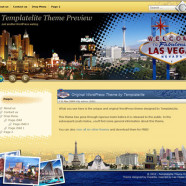
Latest Version: 3.00 Modified on: 2015/05/03 Important note: To avoid compatibility issues, please ensure you are using WP 3+ when you install the Fabulous Las Vegas theme. Click on the “Free Download” link above to get the theme now! By using this theme for FREE, you agree to accept the external links. Gain access to the fully layered Photoshop file for quick and easy tweakage. PSD files included for both the main and the sub themes. Theme CustomizationDo you want to customize this theme to include images that suit your blog's topic? I can help you with the graphical customization. For more details, please visit the theme customization service page. Main Features – User-friendly Options page – Custom Header Menu – Automatic Thumbnails – Different design for sticky post feature – Compatible with IE7, IE8, Firefox, Chrome, Safari, Opera – W3C XHTML and CSS compliant – SEO ready – Gravatar enable Automatic Thumbnails Please refer to this page for the details of how the automatic thumbnails work. Drop-down Menu The Beach Gold Coast theme has a multi-level drop-down menu. There are two ways to create the drop-down menu. 1) When you create hierarchical pages, the drop-down menu will show up automatically in the header navigation. 2) You can manually define the header links using the custom menu. To do it, first, click on the “Menus” link found under the “Appearance” tab in WP admin. Then follow the instruction on the page to add your custom menu. This feature only works with WP 3+. This is another feature that will be added to all my future themes. Plugin There is a featured content section below the header link. This feature is built in using the Featured Content Gallery (FCG) plugin. Please download the latest version and follow the instruction found in “Readme.txt” to do the setup. If you do not want to show this feature, just don’t install the plugin. Blog Title and Description The demo is showing a special font as below: By default, after you install the theme, the blog title and description are showing the Georgia font. You can change the font style by following this instruction: Part 1: Modifying Font Style – Download this PSD zip file (also include the font for this theme) – Extract and open the PSD file in the Photoshop/ImageReady/Gimp/PaintShop program – Change the title and description using your desired font (you are free to modify the header image if you want) – Save the image using this name: bg_header.jpg – Upload the image to your server in the “/styles/default/” folder Part 2: Activating the Style – Login to your WP admin – Go to the options page of the Fabulous Las Vegas theme under “Appearance -> Fabulous Las Vegas” – Find “Theme Style” under “Layout Setting” – In the pull-down menu, select “default.css” – Save the setting and go to your site to see the changes. Ad Widget An ad widget can be found under the “Available Widgets” section. You can drag the widget to Sidebar 1. This widget allows you to add your advertisement while keeping the sidebar design. Please limit the width of your ad to 250px. View all my themes Change log 2010-10-05 v3.00 – Released 2014-04-03 v3.01 – Minor...
Read More


